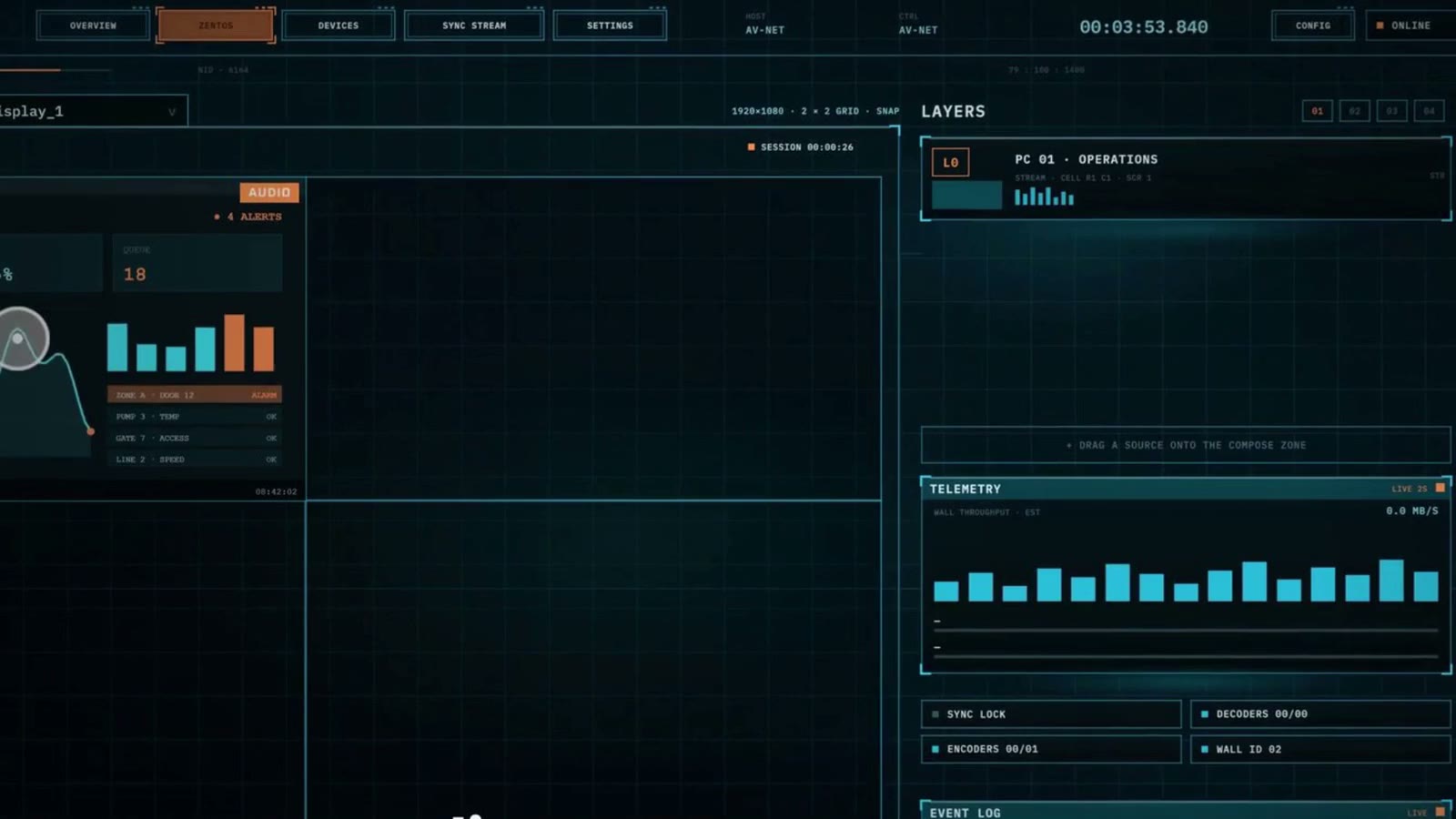
01 / 04
Route anything onto any screen
Every PC and camera on the AV network appears as a live card. Drop one on the wall, move it, resize it, or stretch it across several screens.
One gesture. One command.
Drag an input onto a picture of the wall, and the OTO transceivers behind the real wall follow in about a second. One console runs it all, with no internet needed day to day.
01
Every source. Every screen. One operator.
Every PC and camera on the AV network appears as a live card. Drop one on the wall, move it, resize it, or stretch it across several screens.
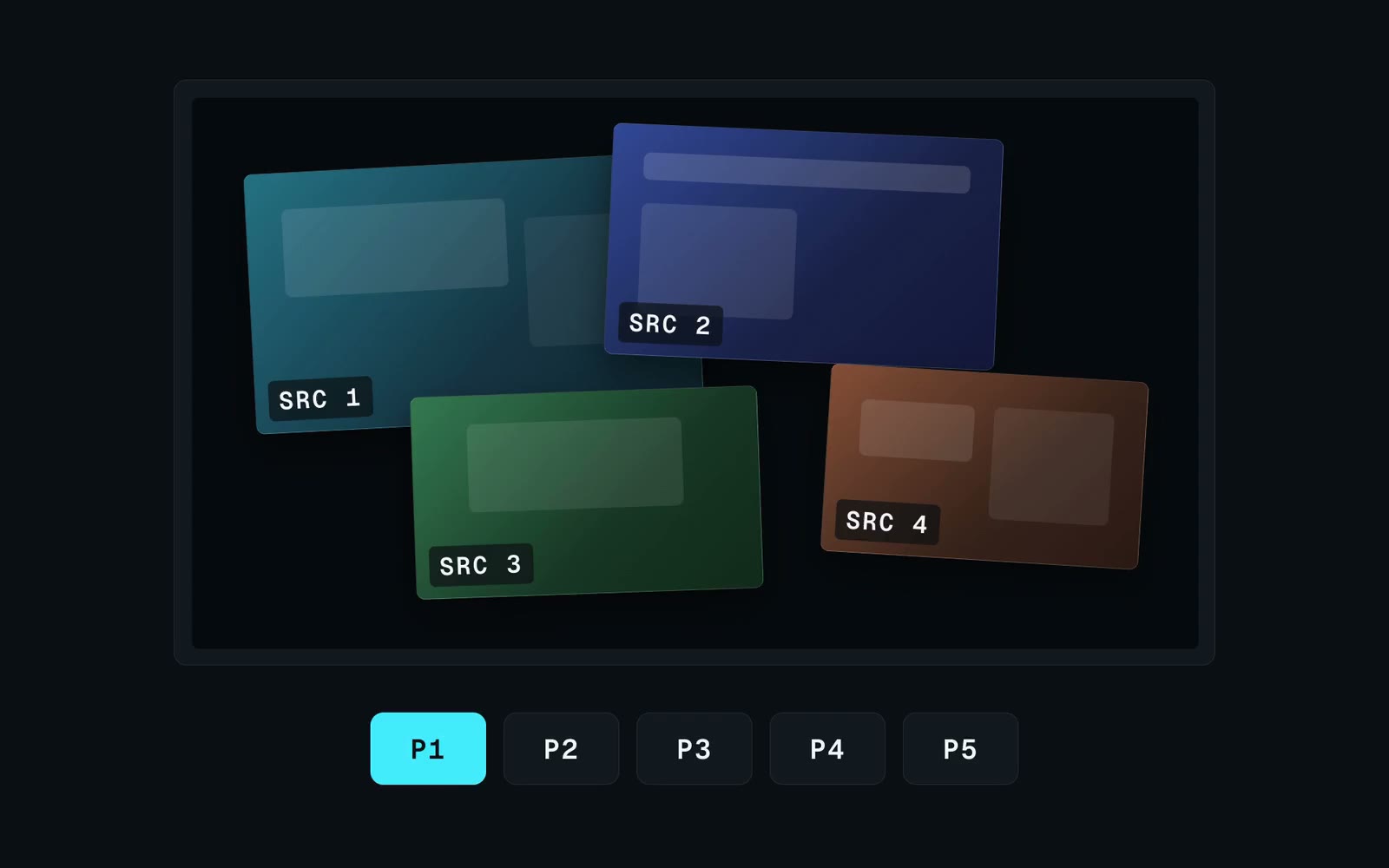
Save the wall to one of ten presets and bring it back exactly as saved, even after edits or a clear. Several walls, each with its own presets.
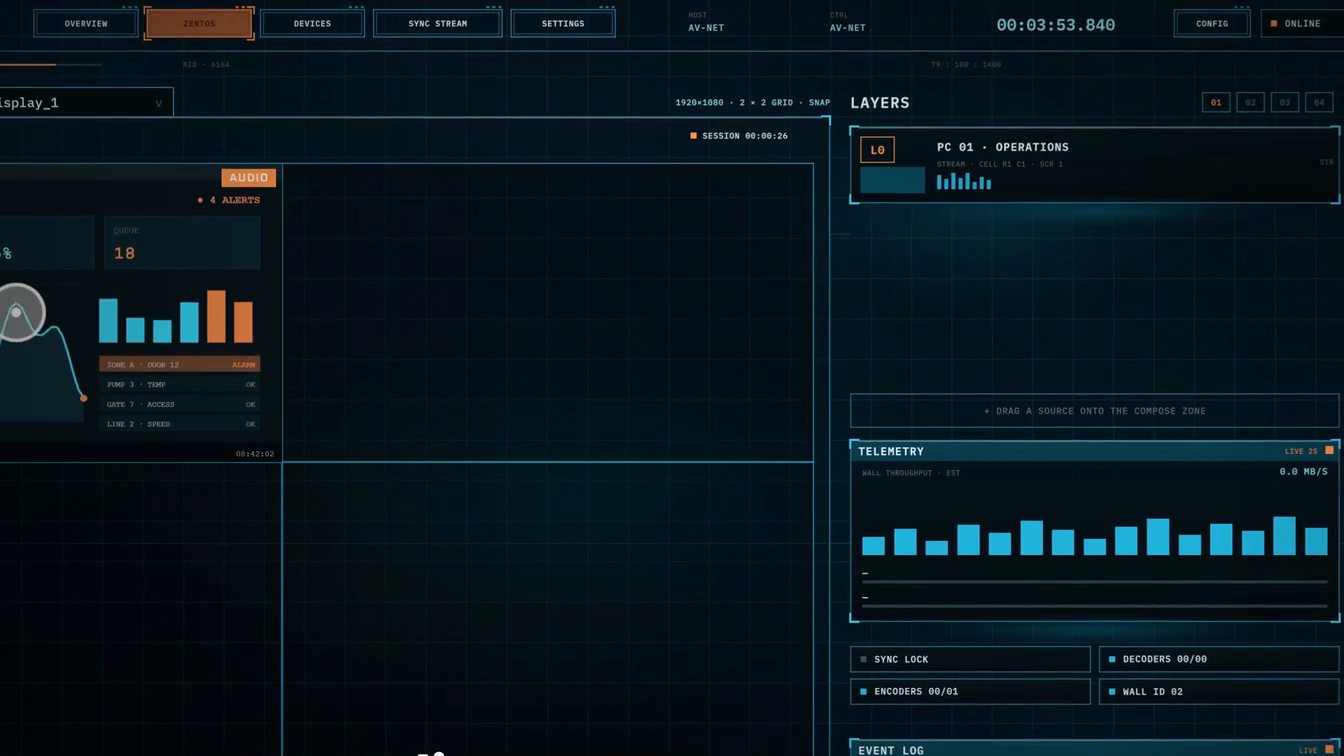
Double-click an input and the seat’s keyboard and mouse take over that PC. One push of the mouse brings you back.
Drop a source on the audio card to choose what the room hears, with volume and mute right there.
02
Drag a source onto a picture of the wall and the real wall follows in about a second. One command per gesture, so the wall never blinks and the operator never waits.
≈1s
input to wall
About 0.8 s per change on the controller, so the fewest changes are sent.
10
presets per wall
Named, saved and recalled in one switch.
5
layout modes
Full, 2×2, 4×4, Free and up to five custom grids per wall.
0
internet needed
Daily operation is fully on site.
Each gesture becomes the smallest set of commands, so the wall changes without cycling or going dark.
Encoders, decoders and the controller do the heavy lifting. Nothing to install at the seats.
Signed, verified updates in the app, and a roll back that needs no download.
03
Everything the operator needs, nothing in the way.
Every source card and wall window shows its picture, with honest status: streaming, connecting or no picture.
Full, 2×2, 4×4, Free with overlapping windows, and up to five custom grids per wall.
One window can span several displays of a wall; each decoder paints its part.
Saved scenes stay safe through clears and layout changes, with optional names.
Control a source PC with the seat’s own keyboard and mouse; choose how operators step back out.
Drop a source on the audio card to choose what the room hears; volume and mute right there.
Export the whole site setup in one file and restore it in one step, with a backup made first.
Signed, verified updates in the app, and a roll back that needs no internet.
04
From the rack to the first preset, in three steps.
Encoders put your PCs and cameras on the AV network and decoders drive the displays. One Windows PC runs ZentOS Middleware.
A live picture of the wall: drag, drop, move and resize. The fewest commands possible, so the wall changes without blinking.
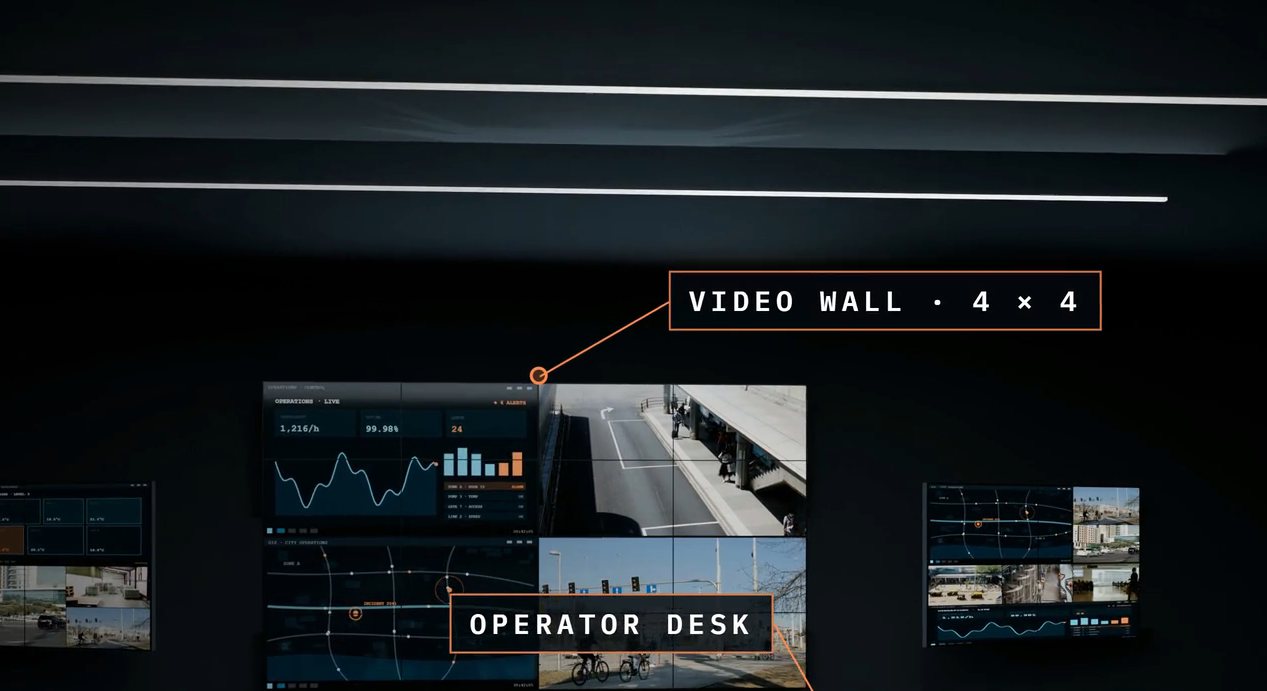
Name it, save it, recall it in one switch. Several walls, each with its own presets, layouts and sound.
05
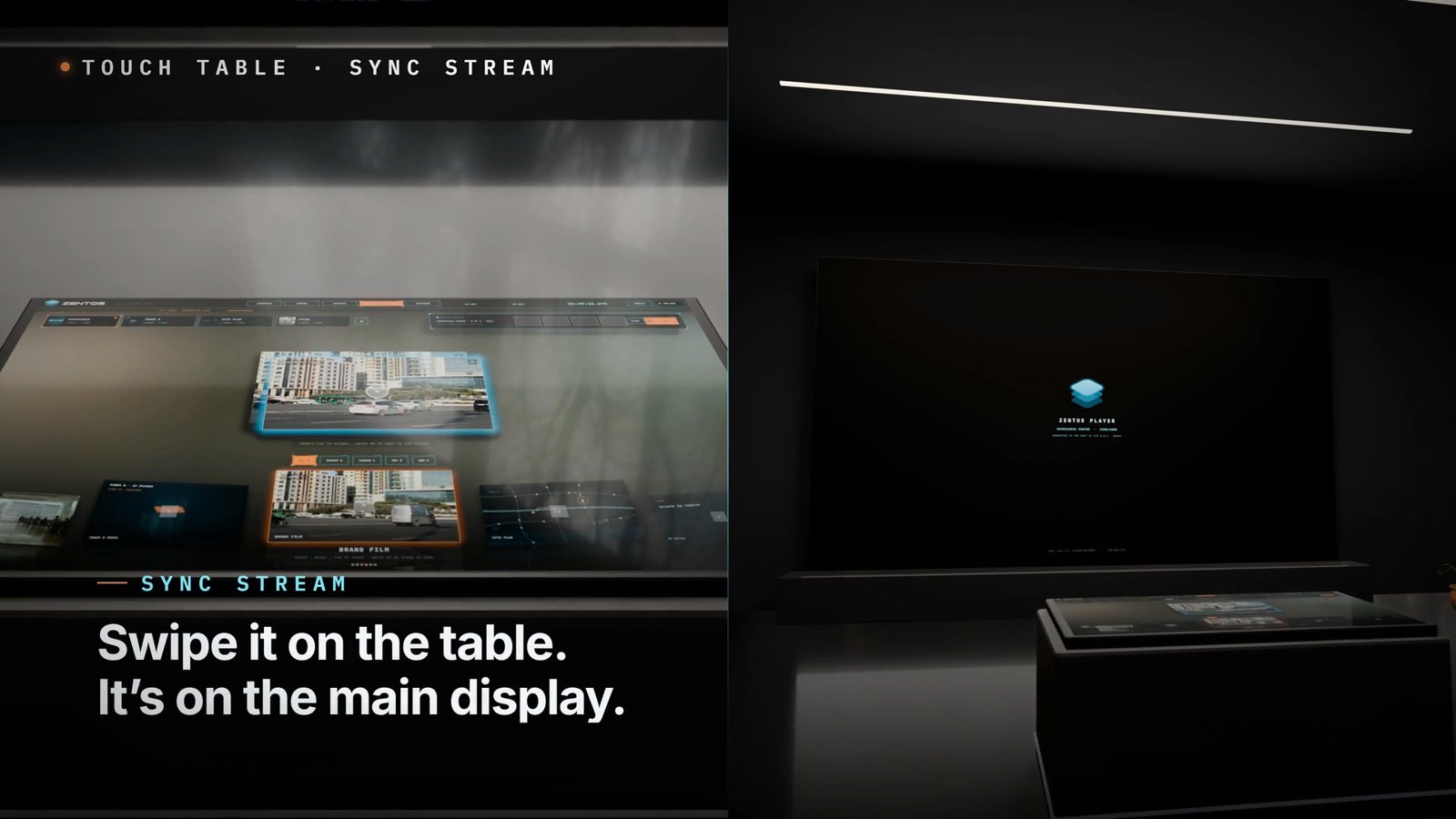
Sync Stream, the add-on: a presentation tab inside ZentOS Middleware, and ZentOS Player on the audience screen.
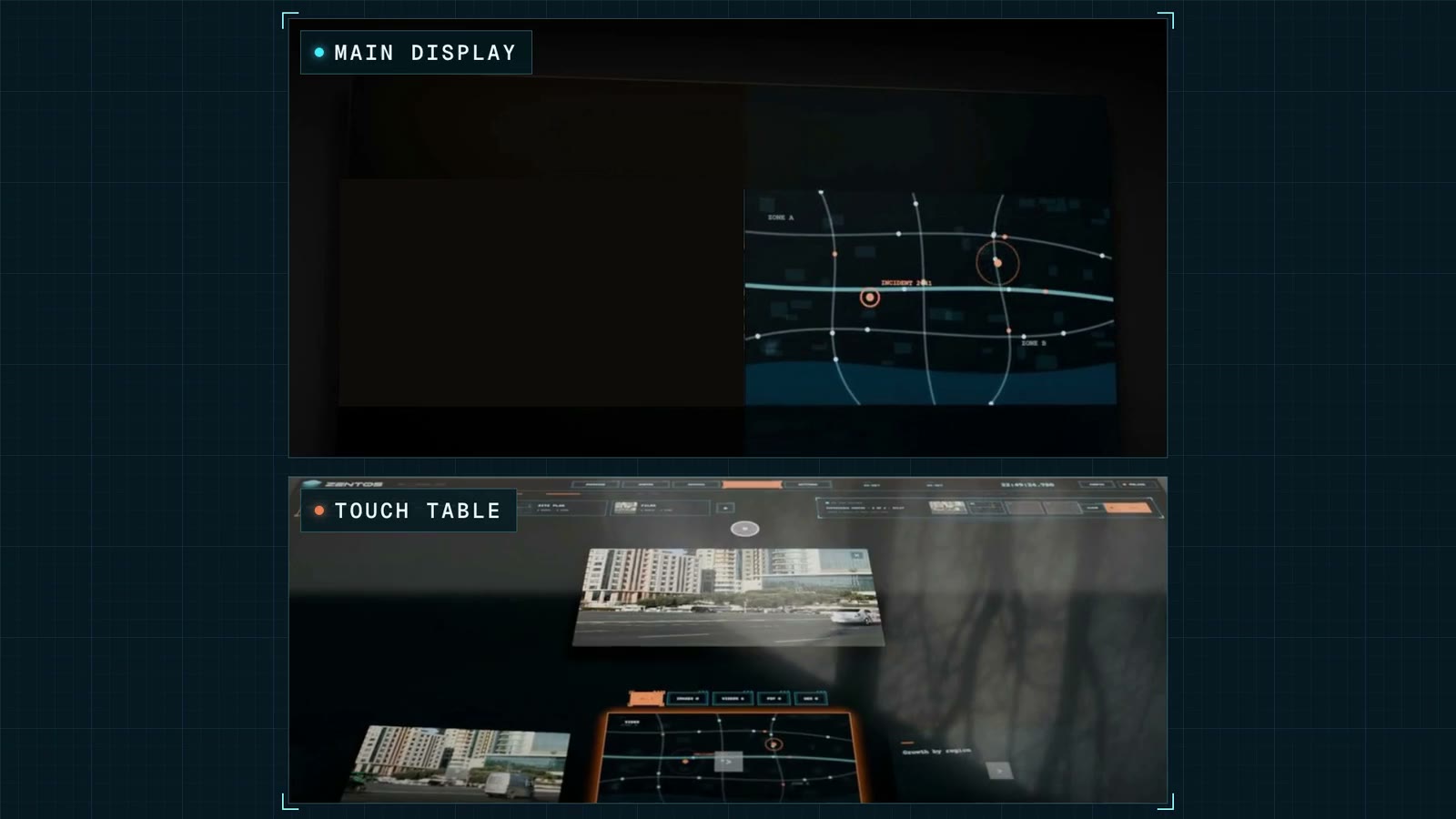
A presentation tab inside ZentOS Middleware, and ZentOS Player on the audience screen. Tap a picture onto the stage, pinch or twist to adjust, then flick it up to send it. Up to four pictures at once, arranged for you.
06
ZentOS Middleware is the control layer for OTO AV-over-IP. The hardware and the software come together, from Yugen.
The brain of the wall. It routes every source, holds the presets for every wall and answers the console in under a second.
One at every source and every screen. Encoders put PCs and cameras on the network; decoders paint the displays, 4K at 60 frames.
Yugen supplies the OTO hardware, ZentOS Middleware and the demo, so one team knows the whole room.
No. Daily operation is fully on site. The internet is only used for updates.
An input appears on the wall in about a second. Each source change takes about 0.8 seconds on the controller, so ZentOS Middleware keeps the number of changes to a minimum.
Yes. Each wall is a layout with its own presets, custom grids and sound choice, switched instantly.
OTO AV-over-IP hardware: the OTO Controller with OTO 4K60 Transceivers as encoders and decoders. Yugen supplies the hardware and ZentOS Middleware together.
Yes. Updates are signed and checked before they install, and roll back returns the previous version without any download.
ZentOS comes from Yugen, together with the OTO hardware it runs on. Book a demo and they will set up a time that suits you.